When troubleshooting WiFi, we often focus on:
 Signal strength (RSSI)
Channel interference
AP placement and power settings
But there’s a silent backbone enabling every device to communicate on the network DHCP. It’s the bridge between “I’m connected to WiFi” and “I can actually browse the internet.”
 What Does DHCP Do in WiFi?
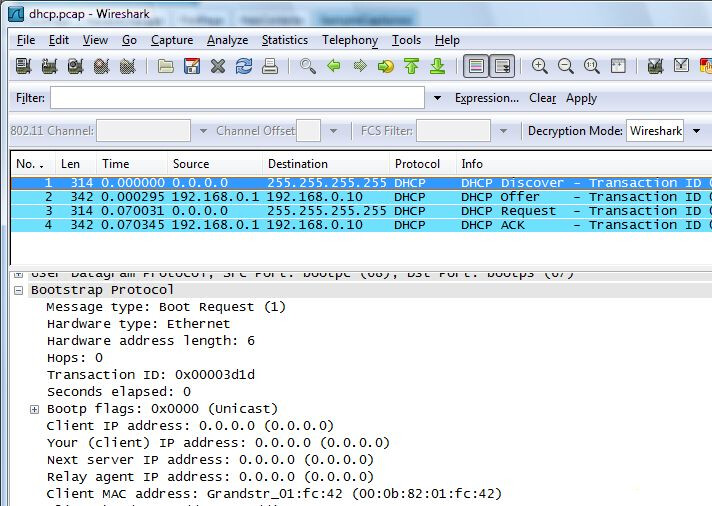
As soon as your device connects to an AP, it sends a DHCP Discover requesting an IP address.
The DHCP server responds with an offer, the device requests to use that IP, and the server acknowledges — a 4-step handshake (DORA process).
If DHCP fails, your device may show “connected,” but you won’t have internet access.
This happens more often than you think — especially in large, high-density WiFi networks.
 DHCP’s Role in Roaming
 Layer 2 Roaming (Same Subnet)
When you roam between APs within the same VLAN/subnet, your IP address stays the same.
No DHCP interaction is needed. Roaming can be fast (typically <50ms).
 Layer 3 Roaming (Across Subnets)
This is where DHCP becomes critical. When your device moves to an AP in a different VLAN/subnet (like moving from Guest WiFi to Corporate WiFi), a new DHCP handshake is required to get an IP in the new subnet.
This adds latency to the roam — and if DHCP is slow, your device can appear “stuck” or disconnected temporarily.
 Common Issues Linked to DHCP in WiFi
 Clients stuck with 169.x.x.x IP (self-assigned because DHCP failed)
Excessive roaming time due to slow DHCP responses
Devices repeatedly disconnecting/reconnecting (because IP leases expire too fast)
DHCP scope exhaustion (no IPs left to assign = devices fail to connect)
 Best Practices to Avoid DHCP Nightmares
Position the DHCP server closer to APs – lower latency means faster handshakes
Monitor DHCP lease time – too short can cause constant renewals, too long can delay
releases
Always plan for capacity – oversubscribe your DHCP pool to avoid scope exhaustion
Enable DHCP Option 82 if you want DHCP requests to carry AP details (useful for
visibility in large networks)
Use static reservations for critical devices like cameras, IoT, or POS systems
Monitor DHCP health actively – response times should stay under 100ms for smooth roaming
 Your Turn
Ever spent hours troubleshooting WiFi, only to realize DHCP was the root cause?
What’s your personal DHCP horror story?
Let’s exchange war stories in the comments — the best lessons come from the field!
LinkedIn: 